Making a Level3 Trigger
These instructions assume that you have a basic understanding of what a
Level3 Trigger consists of. If you don't, please carefully read the
introduction page.
Here are the series of steps you must go through when making a
new Level3 Trigger:
WARNING!!! If you are working and make a mistake and have to press "QUIT",
make sure you exit ALL OF THE WAY OUT OF THE GUI, or the next time you happen
to hit commit (maybe hours down the road) your initial attempt may be stored
and you may wreak havoc in the database. So, if you Quit, be sure to quit
all
of the way, every time. If things seem to behave strangely in the Gui in
general and it's been a while since you restarted the Gui, this is always
the first thing to try since this will clear all of the fields for you.
Good luck!
1. Begin with a list of which Modules your trigger requires (in the
correct order!) and what the talk-tos are that you need set for each
Module.
If you don't have this information, you won't even know how to begin.
Please stay away from doing this all in your head as you go - it's
very easy for mistakes to creep in!
2. For each Module that you will include in your trigger, look at the
talk-tos that are required and make sure that you have a version of the
class that includes all of the talk-tos that you need to set.
This step must be repeated for every instance that will be part of your
trigger. If
the Module Class doesn't have the talk-tos that your trigger requires then
you will need to make a new version of the Class that includes your new
talk-tos. If all of your talk-
tos are in the database, skip to step 5. If you are entering a class for
a module for the first time (version 1 of a class!) then go to step 3 where
you'll learn how to enter a new class. If a version of your
class already exists and you simply need to make a few talk-to changes,
go to step 4 where you will learn to edit a class.
3. Making a new Class:
Follow step 4 'til you get to the "L3 Option Classes" page. At this point
you'll click on "New" instead of "Edit". The "L3 Options Classes Editor
Page" will pop up and allow you to enter a new class:
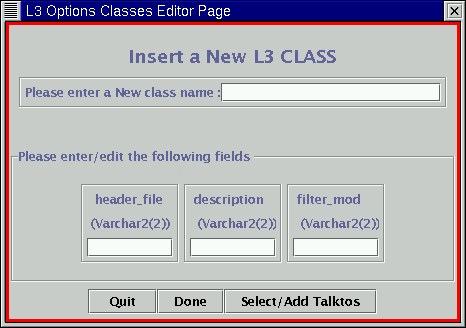
Let's look at an
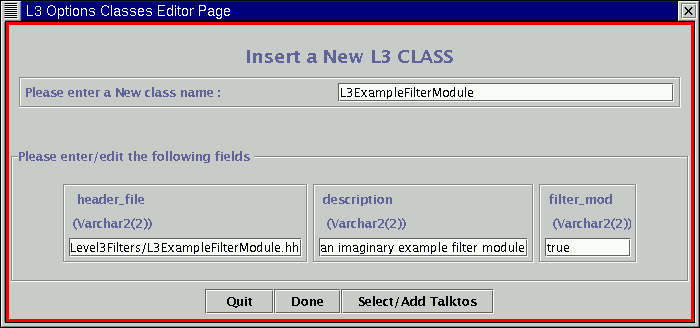
imaginary example of a class to enter, called L3ExampleFilterModule. The
header, we'll pretend, is "Level3Filters/Level3Filters/L3ExampleFilterModule.hh".
We'll pretend that it has one talk-to, called "PTCut" in a menu called the
"Pt" menu, with a default value of "0.0", meaning the default behavior is no
cut. Here is our list of everything we need to know before we begin:
header location:"Level3Filters/L3ExampleFilterModule.hh"
description: an imaginary example filter module
filter module (true/false): true
talkto / menu / defaultvalue: PTCut / Pt / 0.0
So, here is what our Inserting page would look like filled out correctly:
If we've changed our minds about creating this new class we can click on
"Quit"
right now. If there are no talk-tos in this class, we can click on "Done"
and skip to the committing step. Since we have a talk-to to enter, however,
we need to click on "Select/Add Talktos", which brings us to the
"L3_Talktos List Page":
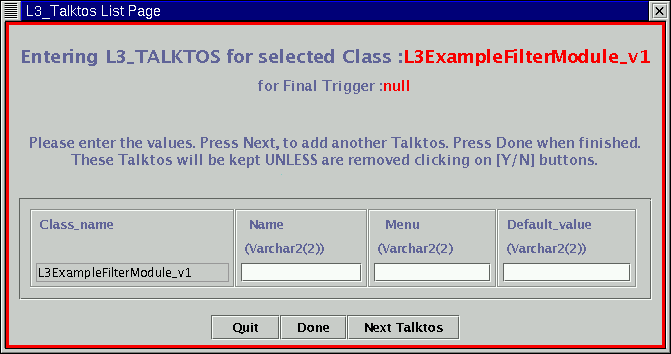
Note that the Module name has been assigned a version number, and is filled
in in the left column. Here's what the page looks like after it is filled
out correctly with our talk-to:
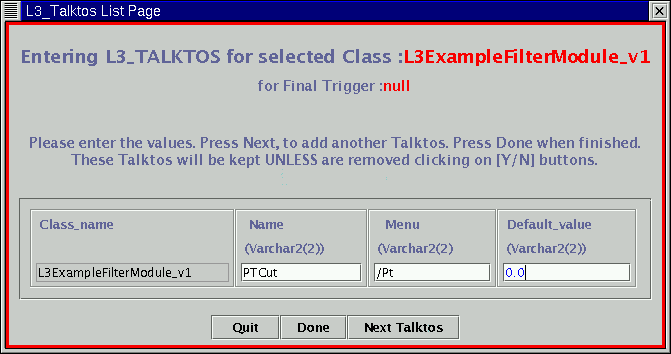
Note that there is a slash ("/") before the menu name. If the talk-to
doesn't belong to a menu, you should still put the slash in that field,
with no menu name following it. Since this is the only talk-to that is
associated with our imaginary class we can click on Done - if we had more
talk-tos to enter, we'd click on "Next Talktos". For the committing
procedure, follow step 4 from this point on. The class won't be entered
into the database until you commit it.
4. Editing a Class:
I'll begin with a real example. I need to add two new talk-tos to the
CT_TrackingModule Class. From the original TriggerGui page I click first
on the "Create/Edit L3 Triggers" which will pop up the Insert/Edit page:
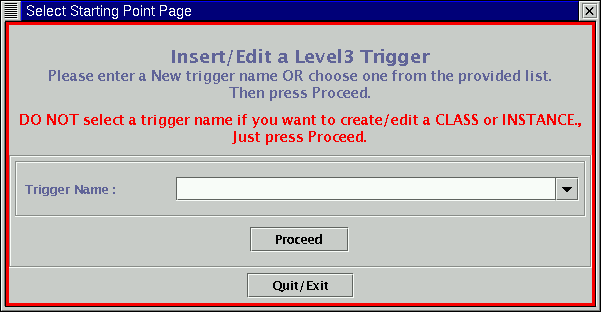
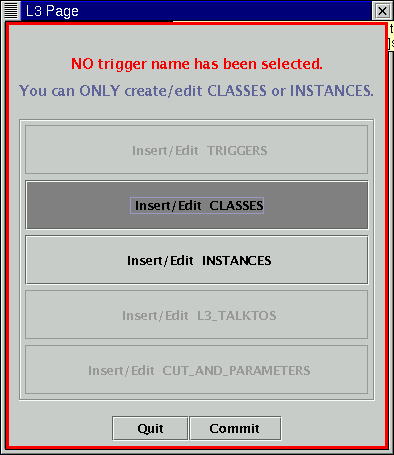
Since I'm working on a class and not a full trigger right now, I click on
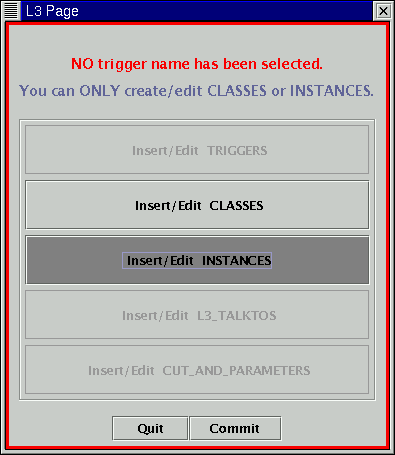
"Proceed", which brings me to the "L3 Page", which should only have two
options,
the class option and the instance option:
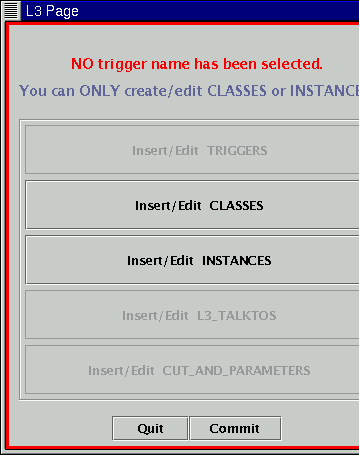
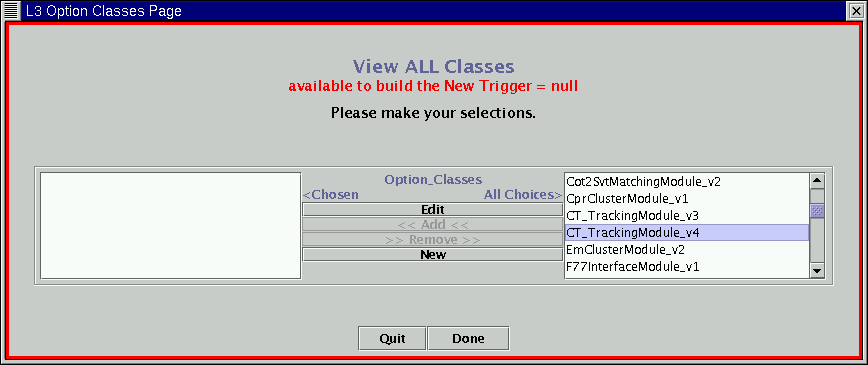
I'm working with a class, so
I click on "CLASSES", which pops up the "L3 Option Classes page" where I
could enter a brand new class or edit an existing class. I want to edit an
existing Class, so I find the most recent version or CT_TrackingModule,
which happens to be version 4, and I
highlight it (by clicking on it) and click on the "Edit" button:
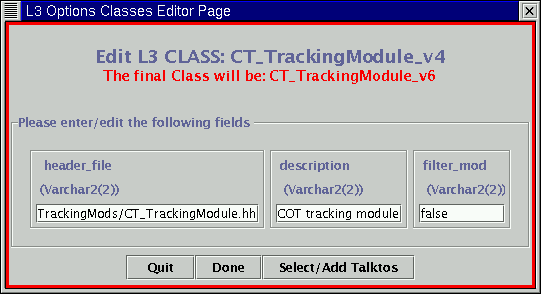
Now the "L3 Options Classes Editor Page" should pop up. This page allows me
to change the header file location, change the description of a Module,
change the type of the Module (filter or not a filter - note that since this
is a reconstruction Module and not a filter Module, the value of "filter_mod"
is false) or edit the talk-tos ("Select/Add Talktos") (NOTE THAT THE VERSION
SHOWN HERE IS _v4 -> _v6 - PRETEND THAT THE _v6 is a _v5! I FORGOT TO TAKE
A SNAPSHOT OF THIS STEP AT THE TIME!!!):
If I've made a
mistake and chosen the wrong class version, or if I've changed my mind
and decided not to edit the class I can escape now without doing any damage
by clicking on "Quit". But let's continue and edit the talkto's, so I'll
click on "Select/Add Talktos".
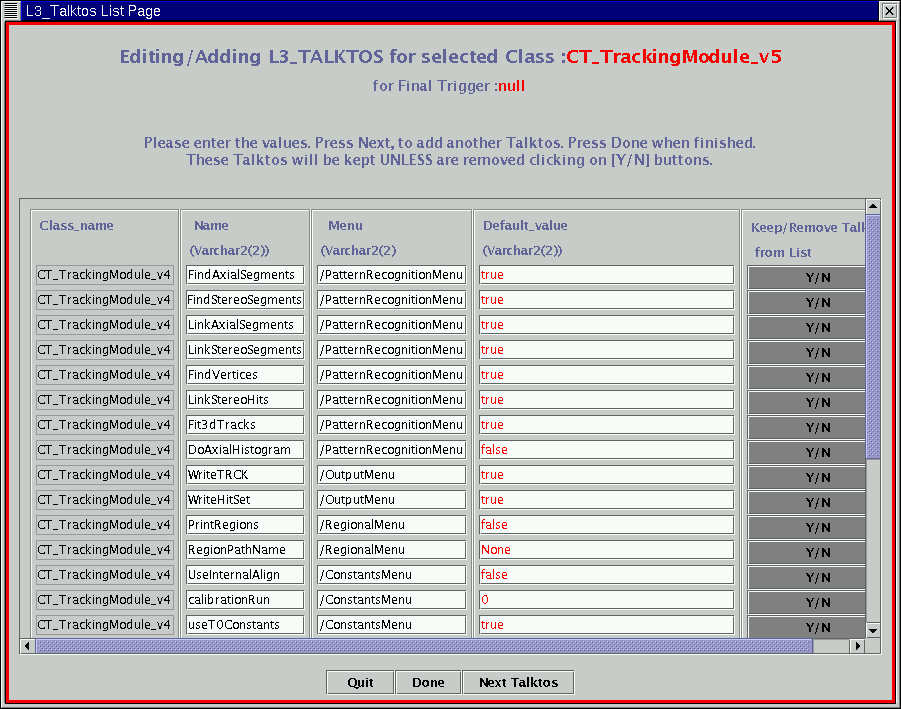
I now have the "L3 Talktos List Page". I could delete a talk-to by finding
the talk-to in the list and clicking on the corresponding "Y/N" button in the
Keep/Remove Talktos column. If you click once on that button, it will un-
highlight and will be removed from the list of available talktos for the
class when you commit your change. Right now I need to ADD talktos, not
delete them, so we click on "Next Talktos" at the bottom of the window.
Here is what we have to work with:
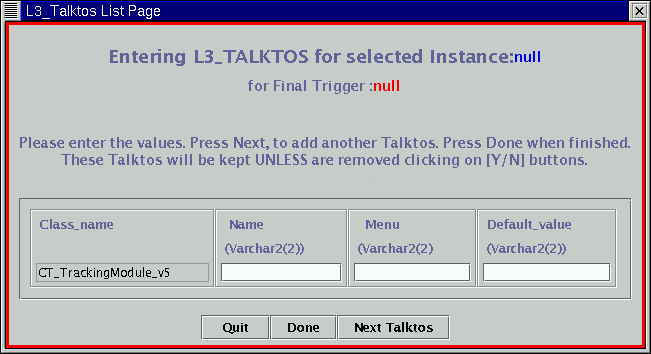
Now is the most important (and dangerous ;) ) step. If we introduce a typo
here and we later use this class to make an instance that goes into a trigger
we will crash the Level3 executable. Extreme caution is needed, or you're
going to create lots of extra work for a lot of people. You need to know
a few things about the talk-tos - first, what menu does it belong to, and
second, what should its default value be. The second question, the default
value, is less important than the first - the defaults aren't automatically
included in any tcl files, so when you make a trigger you'll always have the
chance to change the value that you assign to the talk-to. Here's the list
that I'm going to enter right now:
WriteDEDx - in the OutputMenu menu, with a default value of t (for true)
CleanTracks - in the PatternRecognitionMenu menu, with a default value of 1
Note the syntax - a "/" goes before the menu name. If the talk-to doesn't
belong in a menu, the menu field should have a "/" entered into it. Here's
what the page looks like after the first talk-to has been entered in
correctly:
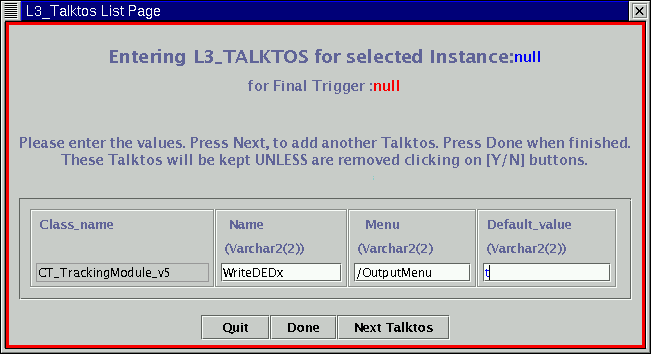
If this was the only talk-to I needed to change, I would click on "Done".
If I change my mind about editing this class, I have another chance to
back-out, by clicking on "Quit". Since I'm making another change, I click
on "Next Talktos". After making my next change, I do click on "Done", and
I am brought back to the "L3 Option Classes Page", but this time I can see
my CT_TrackingModule_v5 (note that the Gui has incremented the version
number for me) in the box on the left:
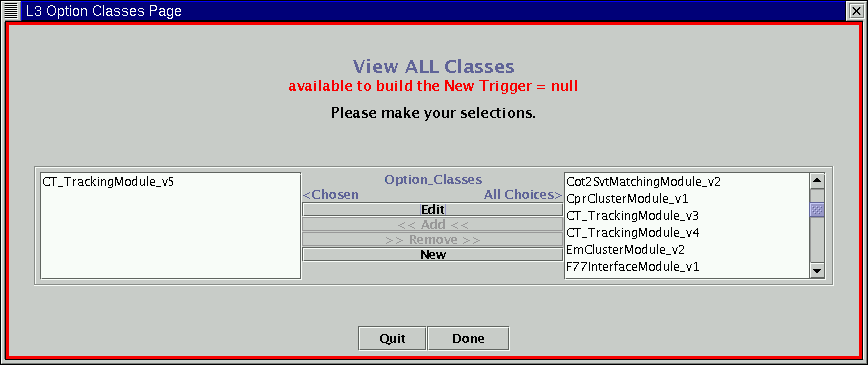
If I'm happy with my changes, I can click on "Done", if not, I click on
"Quit". After clicking on "Done", I am brought back to the L3 Page where
the button "Classes" should be highlighted, signifying that I have made
an uncommitted change. If it isn't highlighted, don't be alarmed. Sometimes
the Gui is slow for this step:
In order for my changes to make it into
the database, I now need to click on "Commit". The "ORACLE Message Window"
will now pop up. After each line you should see an ***Oracle Commit
SUCCEEDED***:
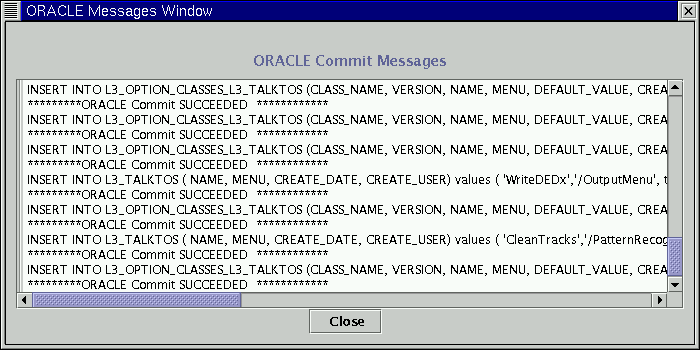
Click on "Close". Trouble shooting for mistakes is beyond the scope of
this web page - there are too many potential problems that could have
popped up... A database expert could help you interpret the error
messages.
5. Check - Do any of the instances you need already exist?
If all of the instances you need already exist, you are very lucky!
You're ready to
move on to step 8. If you need to make a slight change to an existing
instance
THAT IS BASED ON THE SAME CLASS VERSION YOU NEED then you only need to edit
an instance and you can skip to step 7. If you need to create a new instance
(if your talk-tos are very different from the older instances, or if you're
basing your instance on a new class) then go to step 6.
6. Making a new instance:
Be aware, as you make instances, that many instances in the current trigger
tables are used in more than one trigger!!! The many inter-dependencies
make life difficult and mean that you have to be extremely careful.
From the original TriggerGui page click
on the "Create/Edit L3 Triggers" which will pop up the Insert/Edit page:
Since this is for an instance and not a full trigger right now, click on
"Proceed", which brings you to the "L3 Page", which should only have two
options available, the class option and the instance option:
Since we want to make a new instance, we click on the "Insert/Edit INSTANCES"
button, and the "L3_Instances page" pops up.
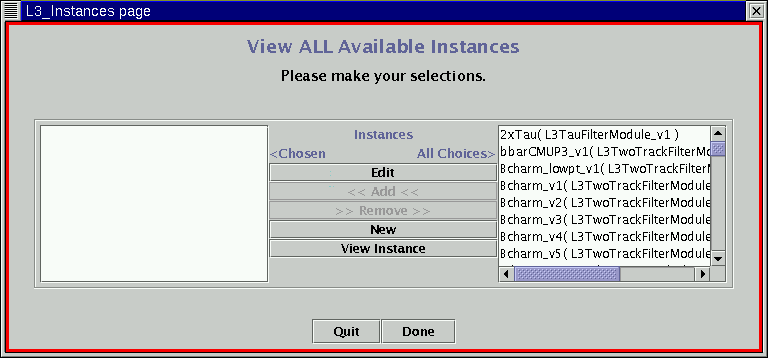
We're going to make a new instance, so we click on "NEW", and the
"L3 Options Instances Editor Page" pops up:
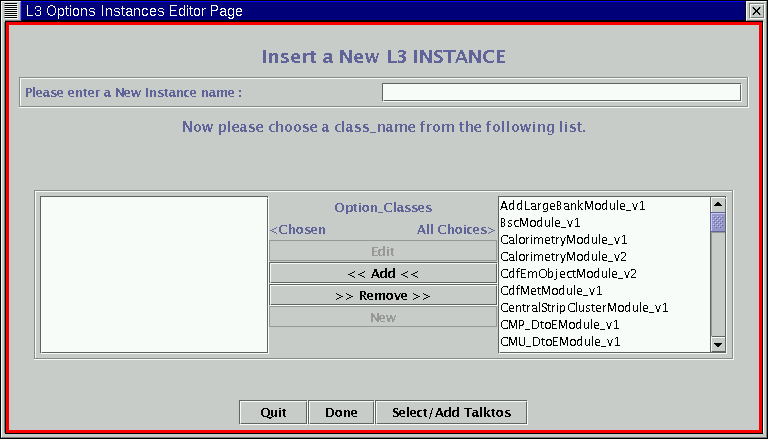
We need to know two things
in order to proceed - first, what name we'd like to use for the instance
and second, what class (and VERSION of the class) the instances is going
to be built from. Let's make a simple electron filter. Here are the answers
to the above questions:
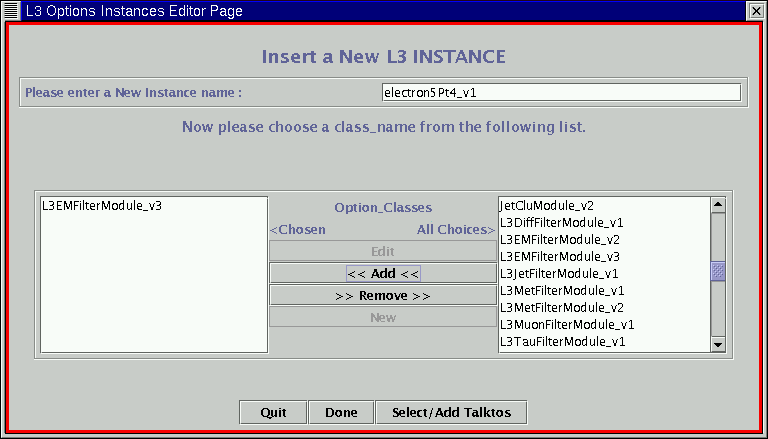
instance name:electron5Pt4_v1
class name (including version): L3EMFilterModule_v3
Note that instances are different from classes - when we name the instance
we write in the _v# - there isn't a separate field for this in the database.
So if we're editing an instance, we would rename it the same thing, but
type in the next number up for the version. This is an important point. In
order to select the Class (and correct version of the class) you click on
it in the right window and then click on "Add" and it should appear in the
left window.
Here's what the "L3Options Instances Editor Page" will look like after
everything has been entered correctly:
I'm assuming that you KNOW the talk-tos associated with the instance you're
creating. If you don't, we're all in big trouble. Of course, the instance
wouldn't be going into the database unless it was for a well tested (and
therefore well defined) trigger. You get the point. :) So, here is our
well defined tcl fragment that is associated with our instance:
commonMenu
nEmObj set 1
CalorRegion set 0
exit
centralMenu
cenEt set 5.0
cenTrackPt set 4.0
exit
If we didn't have any talktos associated with the instance (which would be
the
case if we're simply running with all of the defaults in the code) then
we can click on "Done". As always, if we've made a mistake we have the
option of clicking on "Quit". Since we have talk-tos, we need to click
on "Select/Add Talktos". This will pop up the "L3_Talktos List Page",
which displays all of the talktos (and their defaults) that are associated
with the class we have chosen:
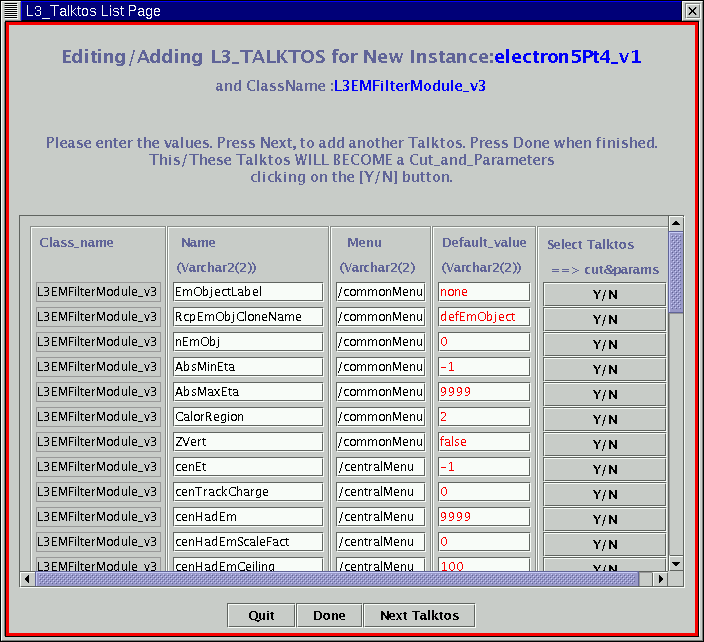
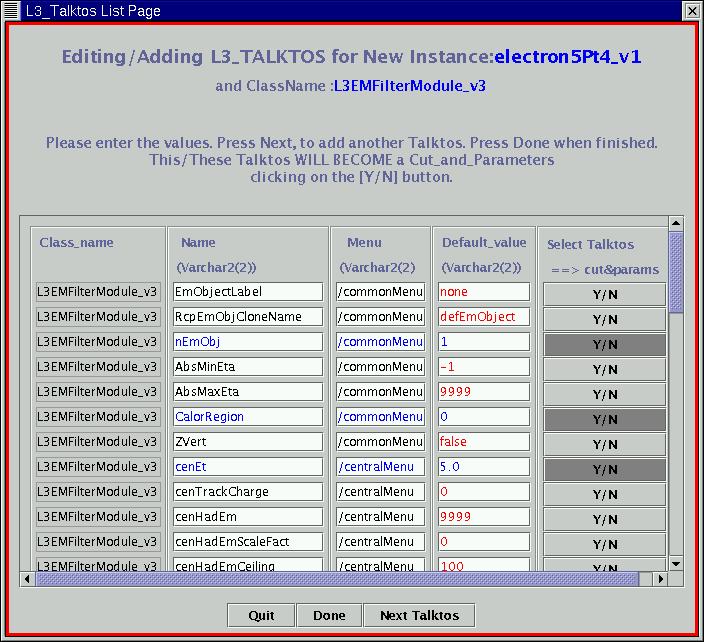
You have two things to do for each talkto that you want to include. First
you need to edit the value in "Default_value" column. Second, you need to
click ONCE on the far right column associated with each talkto, so that
the button is highlighted. In order for the talkto to be included the button
must be highlighted. There is NEVER a reason (or never a reasonable reason)
to edit the "Name" or "Menu" columns. If there is a typo there, the base
class needs to be fixed - you can't fix it at this stage. (This option
should be removed from the Gui...) You can't see all of the talk-tos in this
screen shot without making things very large, but here is what the talktos
you can see will look like after they are entered correctly:
after double checking that everything has been entered correctly, since we
have done all of the talktos we click on "Done". If we need to start over,
we can click on "Quit". There would NEVER be a reason to click on "Next
Talktos" at this point. We can't add talktos to the base class at this
stage of the game. Again, this should be a change made to the Gui, to forbid
this option... After clicking on "Done" the "L3_cut_and_parameters List
Page"
will pop up. This is the Gui at its most forgiving. If you've introduced
a typo you have the chance to fix it here. This is what our instance looks
like at this point:
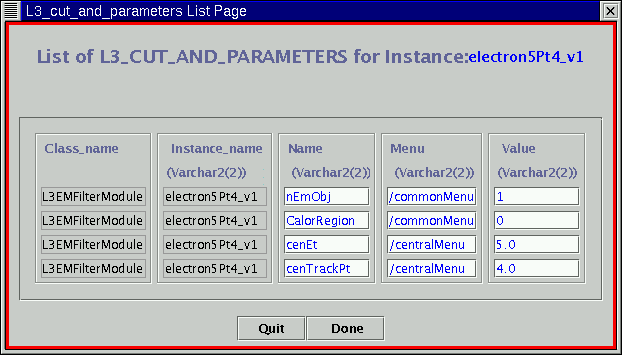
If we've forgotten a talkto we need to hit "Quit" and start over. Once
again, the only column we should edit here is the "value" column. Since
everything is correct, we now can hit "Done", and that page will disappear
and we can go back to the "L3_Instances Page" where we should see our
instance
in the box on the left. Once again, if your instance name isn't written
there, don't be alarmed. The gui is slow on this step, and there's no need
to wait for it to catch up before continuing on and clicking on "Done".
You now go back to the "L3 Page", where the "Insert/Edit INSTANCES" should
be highlighted. If you want to commit your changes (inserting them into
the database) you click on "Commit" in the lower right. If not, this is your
last chance to hit "Quit".
After clicking on Commit, you should see the "ORACLE Message Window".
After each line you should see an ***Oracle Commit SUCCEEDED***. I don't
want to commit this example, but you can see what this looks like if you
look at the Making a New Class example above.
7. Editing an instance:
Editing an instance is similar to making a new one. Follow the Steps from
#6 'til you are at the "L3_Instances Page" - at this point you are going
to be editing as opposed to creating a new instance. You need to find
the instance you're going to edit, and highlight it in the box on the right.
We'll edit the dijet120_v2 instance for our example, changing the
dijetMassEta cut from 2.2 to 2.0, so we scroll down to
it and highlight it.
The dijet120_v2 instance is based on the class L3JetFilterModule_v1.
Note that the class the instance is based on follows the instance name
in parenthesis:
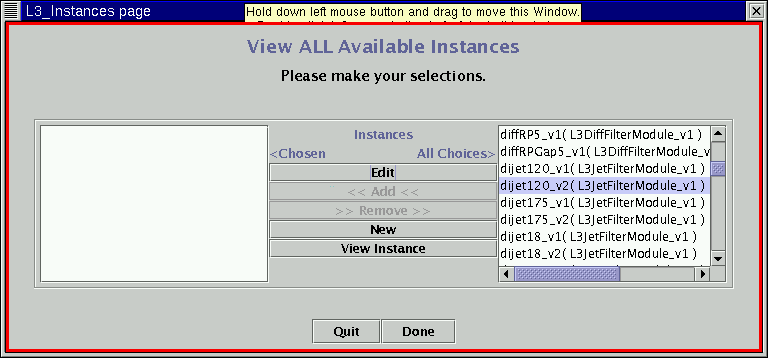
We now click on "Edit" and the "L3 Options Instances Editor Page" will pop
up:
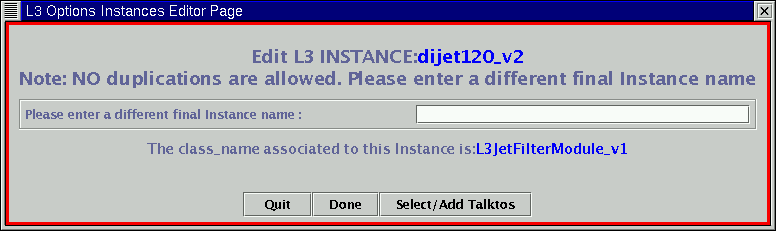
Note that we cannot edit an instance of one class version to make
an instance of a new class version. This means that if the underlying
class version has changed, you need to make a NEW instance, and not edit
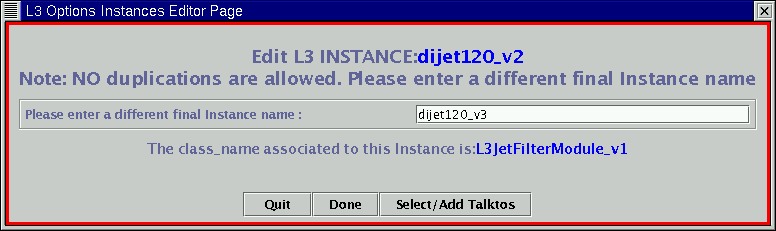
an old one. But we're happy keeping the same version of the class, so we
simple increase the version number by one (unlike with classes, the database
and gui don't keep track of instances of versions for us since there isn't a
separate field, so if we want the convenience of version numbers, which
have proven to be very helpful, we need to type them in ourselves.) so our
new name is dijet120_v3 and this is what it looks like typed in:
Since we need to change one of the talktos, we'll click on "Select/Add
Talktos", and the "L3_Talktos List Page" will pop up, with the old instance
talktos and values in blue and highlighted:
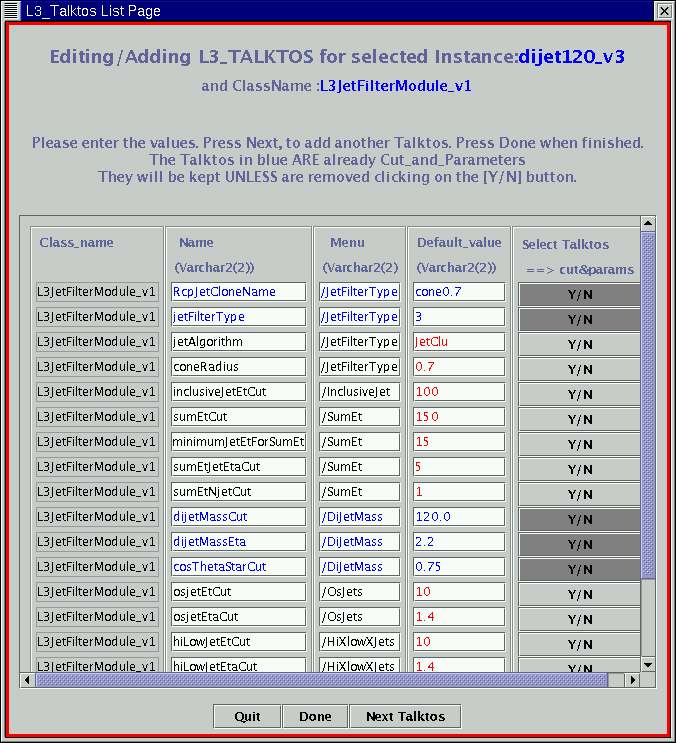
We now need to make the changes/additions/removals necessary. We have the
easy job of just changing a cut value. If we were going to include a talkto
that wasn't part of the original instance we'd need to click on the "Y/N"
button (it must be highlighted in order for the talkto to be included as part
of the instance) and edit the "Default_value" column to the appropriate cut
value. If we were removing a talkto that was originally part of the instance
we'd simply need to click on the "Y/N" button once to un-highlight it. But
let's make the change to the dijetMassEta, making the 2.2 a 2.0 and then
click on "Done". Note that the "Name" and "Menu" columns should never be
edited, and that the "Next Talkto" option at the bottom right should never
be chosen since we can't add a talkto to a class at the level of editing
an instance.
After we click on "Done" the "L3_cut_and_parameters List Page" will appear
listing all of our talktos with their values:
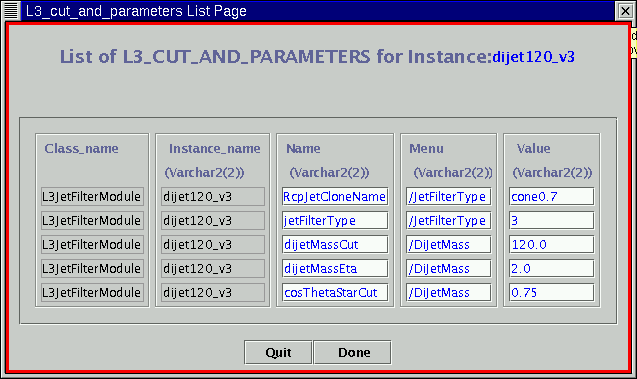
The dijetMassEta cut has been correctly changed. This is an opportunity for
us to fix any typos that we may have introduced, though (as always) the
"Name" and "Menu" columns should not be edited, only the cut value. We can
quit if we're unhappy with what we've done, or we can click on "Done", to
go forward with it. We are brought back to the "L3_Instances page" except
now our new instance name is in the box on the right side:
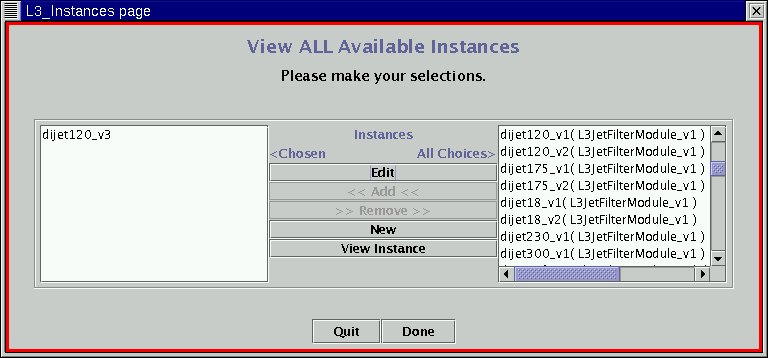
We have another chance to quit, or we can click on "Done" and will be back
to the L3 Page, where the "Insert/Edit INSTANCES" button will be highlighted.
This is our last chance to back out - we can click on "Quit". If we like
our new instance, we can insert it into the database by clicking on "Done".
After clicking on Commit, you should see the "ORACLE Message Window".
After each line you should see an ***Oracle Commit
SUCCEEDED***. I don't want to commit this example, but you can see what
this looks like if you look at the Making a New Class
example above.
8. Putting the trigger together:
You should now have all of the instances you will need for your trigger.
This is the step where you actually can put your trigger together. Have in
front of you the Classes (and versions of the Classes) that you're using in
the CORRECT ORDER.
Here's an example we'll use:
Instance :: Class
----------------------
globalCT_HL2 :: CT_TrackingModule_v3
twoDisp120Track2_v3 :: L3TrackFilterModule_v4
Bcharm_v4 :: L3TwoTrackFilterModule_v1
This is actually the L3_TWO_TRACK_B_CHARM_v5, but we'll pretend that it
doesn't exist so I can show you how to make it from scratch since all of
the instances exist. We begin from the Main Gui page by clicking on
the "Create/Edit L3 Triggers" button. This will pop up the "Select Starting
Point Page":
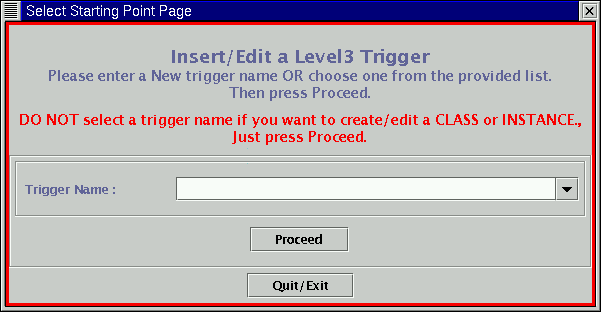
If we were editing an existing trigger we could click on the arrow down and
select the trigger we want to edit from the list of all of the non-retired
triggers. Since we're creating a new trigger, however, we need to type in
the name. We'll call this trigger the L3_B_CHARM. Here's what the page
looks like when the name has been typed in correctly. Note that I didn't
have to type the version number - that's only for instances. The trigger
has a separate field that the Gui fills for us automatically:
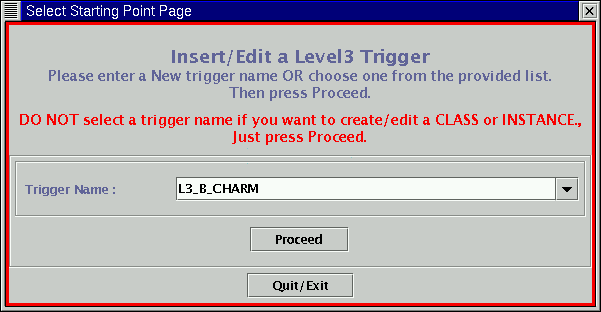
To continue we click on the "Proceed" button. The "L3 Page" will pop up and
you'll notice that there are more options available than there were when
we left the trigger name blank:
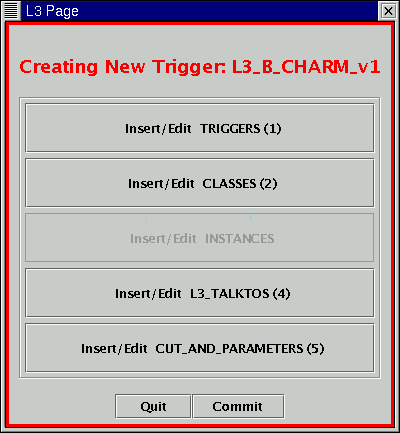
The first step for us, creating a new
trigger (and it would be the same to edit) is to figure out the classes,
so we click on "Classes" and the "L3 Option Classes Page" pops up:
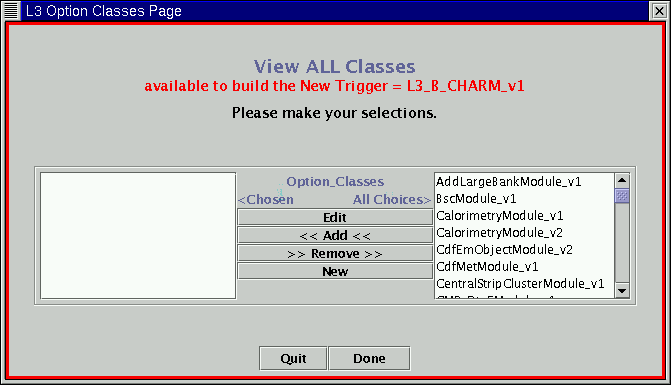
We now need to select each class (in order)
by clicking on it in the window on
the right and then clicking on "Add" to bring it to the window on the left.
Here's what the window should look like after we've added all three classes:
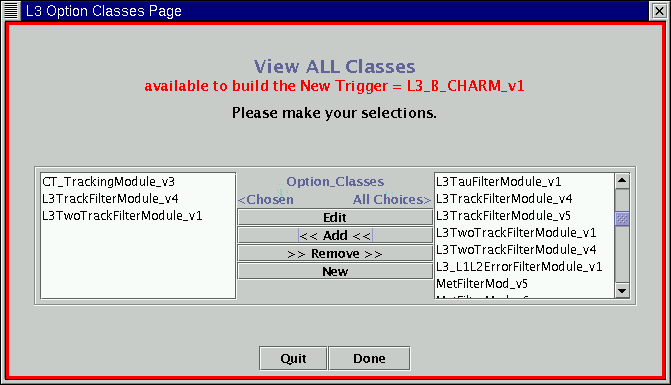
In order to continue we need to click on "Done". The Gui knows which
instances
are available for each version of each class so the next thing that will
happen is a "L3_Instances page" will pop up for each class that we've
selected and we'll be able to select the instances that we'd like. The
first class that we put is CT_TrackingModule_v3, so this is the first
window that pops up:
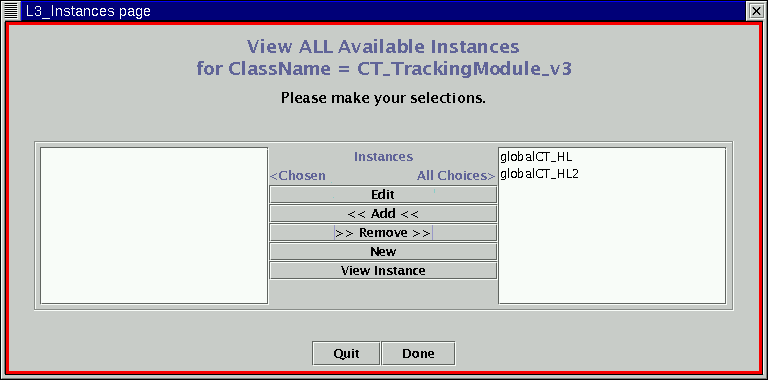
We want to select the "globalCT_HL2" instance. (note that when i made these
instances I was sloppy with the version number - it makes things a pain later
on!) To select it we highlight it, and click on "Add", so that it appears
in the box on the left:
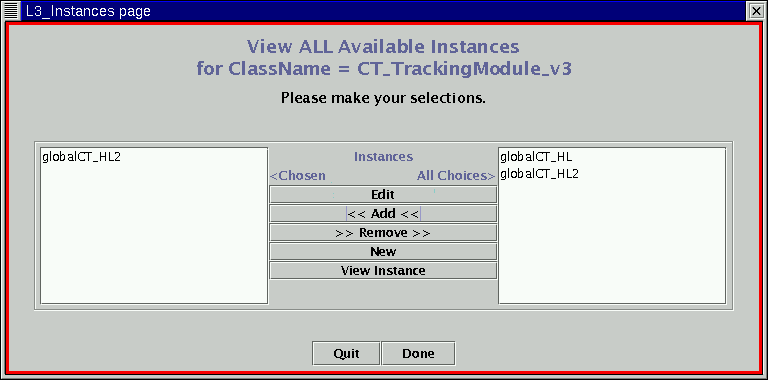
We click on "Done" and we are given the option for the next instance, and
so on, 'til we have selected an instance for every Module, at which point
the "L3_option_sequences List Page" will pop up and show us what we have
chosen:
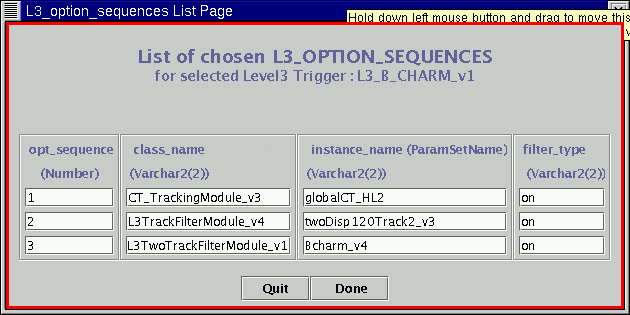
There may be problems with this page. We've worked to iron out the bugs in
the Gui, but Donatella is consistently impressed by the creative ways we
discover new problems. Sometimes if we use more than one instance for a
class in a trigger (for example, in the reco trigger when we use two
different clusterings for the jet cone) there will be a mistake here. Be
sure
to edit the "instance_name" field 'til everything is correct. It looks like
what we have is correct, so we click on "Done". We go back to the "L3 Page"
and we see that the classes are highlighted. We've done everything we
need to do to make a trigger but click "Commit". When you commit a trigger
you don't jump instantly to the Oracle Message window - there's some info
that you're allowed to enter now, so the "Insert Table Data dialog" page
will pop up:
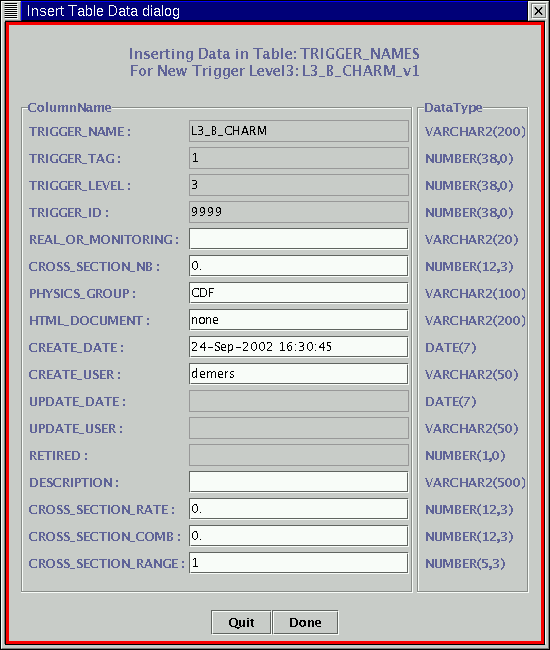
I try to always enter something in the description field. If someone has
given you information for the other fields then you can enter it in. When
you are finished, click on "Done", and the Oracle Message window will pop up,
hopefully with lots of successes!